UI Conventions
Context Menu
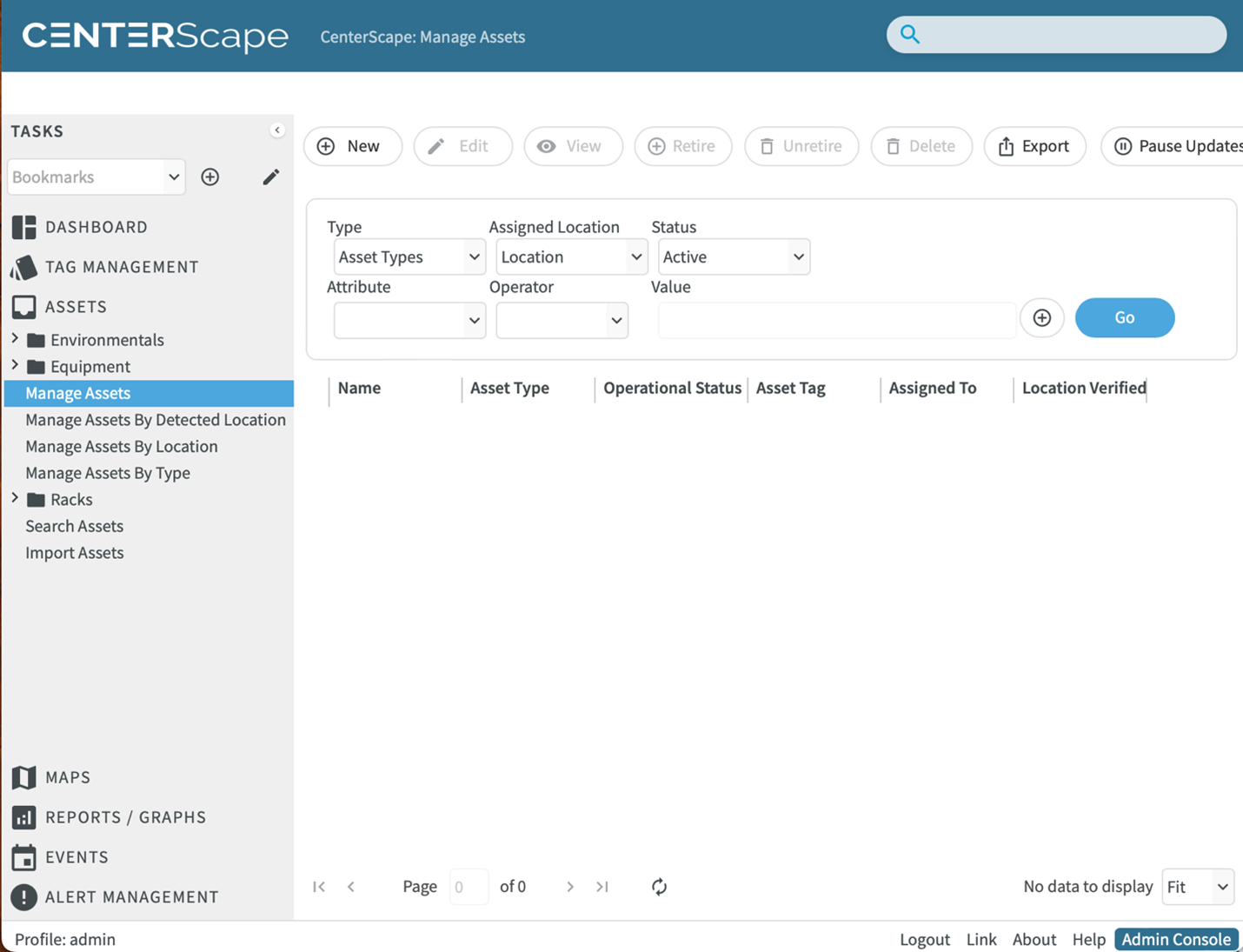
The context menu is the left pane frame on the UI. It has a list of general categories and then lists of functions under those categories. Selecting a category will select the top function or the last function selected in that category. Many of the categories between the User Console and Admin Console are common like dashboards, alerts, reports and events, but the actual selections will apply to different aspects of CenterScape. Some selections within a category may have a folder icon. Folders have no function other than containing more functions or more folders and must be expanded by clicking on the > symbol. This manual will refer to selections as Console->Category->Function. For example, the following example will be User Console->Assets->Manage Asset.
The Red Tick
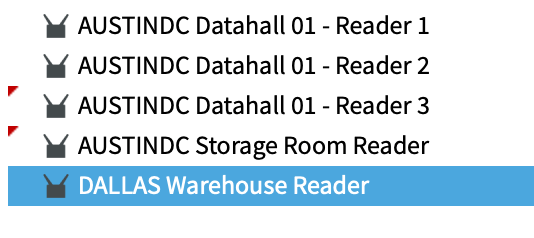
CenterScape’s user interface is a live view. When an attribute or status of something being viewed in the UI changes a red tick will appear near the attribute that has changed. This is not an alarm, but rather an indication of change that might need attention. In the below graphic two readers recently went online after being offline so a red tick appears. If the user changes selection or the browser is refreshed, then the ticks will disappear.
Pagination Displays
Many user interfaces in CenterScape display data similar to rows in a spreadsheet. By default, the number of rows viewable in the UI will be set to “Fit” which will render up to the number of rows that fit based on the resolution of the client using the web browser. On the bottom right a page control is visible that allows users to adjust how many results are displayed as well as choose which page of results to view next. In the below example the page results are set to 25 and there are 9 pages of results. The page number wanted can be manually entered or the > and >| controls can be used to go the next or last page respectively. The maximum number of results that can be displayed in the web UI is 200 and when doing so a scroll bar will appear to view rows below the resolution of the screen.
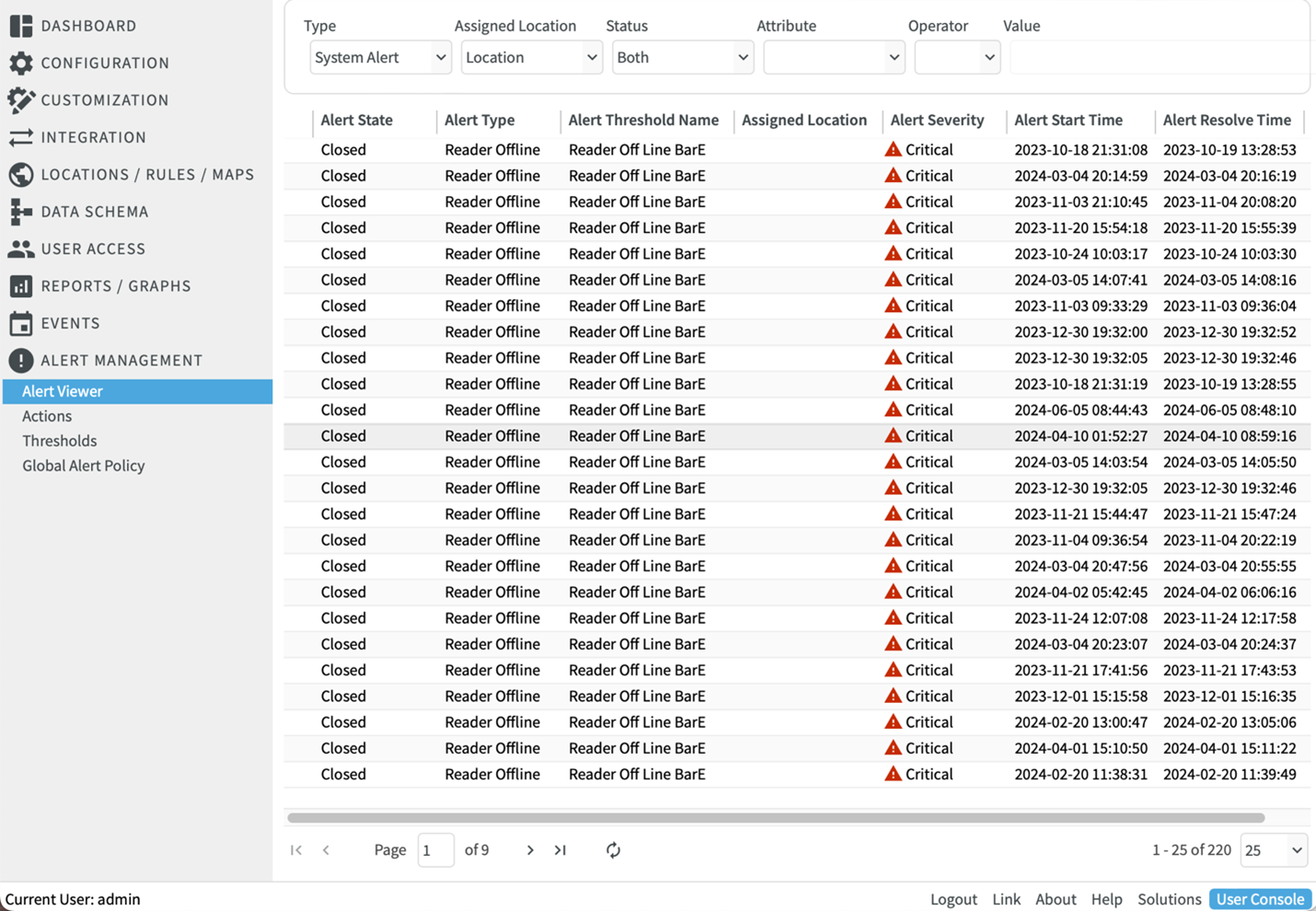
Columns in the Pagination displays can be sorted by clicking on their headers. The first click on a string attribute will be alpha number sorting from least to greatest and then A to Z, while an additional click will sort descending from Z to A and then 9 to 0. For sorting on a integer, float or other numeric attribute the sorting will be value based instead of character based. The sorting will apply to all the result set, not just the number of rows on the current page and sorting will be active so that if new values on the sorted field are updated, then the sort will update as well.